It is easy to paste first and think later. A customer email, a contract, a spreadsheet of names: the AI will happily work with all of it. But whatever you paste leaves your computer, and depending on the tool and your settings it may be stored, reviewed or used to improve the service. A few habits keep you, your clients and your employer safe, and most of them take seconds.
1. Know where your chat goes
Different accounts treat your data differently. Business and enterprise plans often promise not to train on your conversations, while free personal accounts may do so unless you switch it off. Check the tool’s data or privacy settings, look for an option to stop your chats being used for training, and use temporary or incognito chats for anything sensitive if your tool offers them.
2. Leave out personal details you do not need
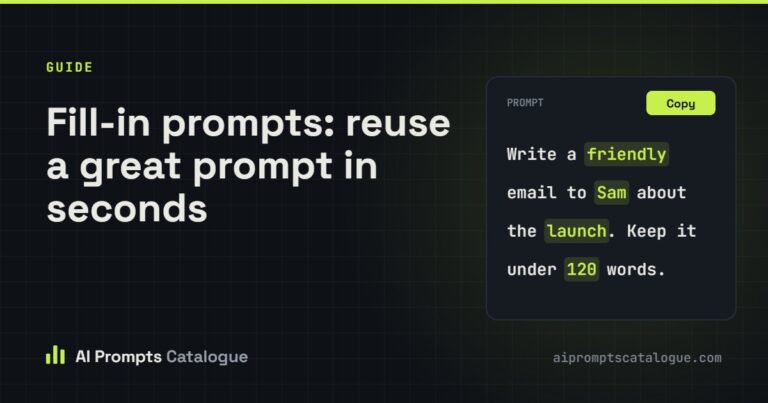
Most tasks do not need real names, phone numbers, ID numbers, addresses or health information. Replace them with placeholders such as [Client], [Company] or [Employee A], and swap them back afterwards. Fill-in prompts make this natural: the blanks show exactly which details the prompt needs, and nothing more.
3. Never paste passwords, keys or tokens
This includes API keys in code, database connection strings, recovery codes and one-time PINs. If you ask for help with code, remove secrets first or replace them with YOUR_API_KEY. If a secret does slip into a chat, change it straight away: deleting the conversation is not enough.
4. Clean documents before you upload them
Documents carry more than you see: tracked changes, comments, hidden rows and author names in the file details. Share only the pages you need, remove names and account numbers, and save a clean copy for the AI.
5. Think about other people’s information
When you paste a colleague’s email, a customer’s complaint or a child’s school report, you are sharing someone else’s personal information. Data protection laws such as POPIA in South Africa and the GDPR in the UK and EU may apply, especially at work. When in doubt, anonymise it or ask first.
6. Follow your organisation’s AI rules
Many employers and schools now have a list of approved AI tools and rules about what may be shared. Using an approved work account instead of a personal one can be the difference between a safe shortcut and a data breach.
7. Watch shared links and old chats
Shared conversation links can often be opened by anyone who has the link. Before you share, reread the whole conversation, not just the last answer. Clear out old chats you no longer need, especially on shared or work computers.
8. Check the answer before you use it
Privacy is about what goes in; accuracy is about what comes out. AI can state wrong facts with confidence, invent sources and misread numbers. Check anything you will publish, send or act on, and do not rely on AI alone for medical, legal or financial decisions.
How we handle your privacy
You can browse, search and copy every prompt on AI Prompts Catalogue without an account. The details you type into fill-in fields stay in your browser: we never receive them. Your AI conversations happen in your own AI tool, not on our site. We only use analytics if you allow it, and never for advertising. Read our Privacy Policy and Cookie Policy for the details.
A privacy-friendly prompt to reuse
Paste this before a long document to make the assistant work with placeholders:
I am going to share a ${document type:customer email}. I have replaced names and
contact details with placeholders in square brackets. Keep the placeholders exactly
as they are in your answer and do not guess the real details.

Task: ${task:draft a polite reply that resolves the issue}.